My New Journaling System: Apple Journal + Google Photos
I love journaling, as you can probably tell from my previous posts. Over the years, I’ve experimented with different journaling systems, including the Bullet Journal method, and eventually developed my own style, which I’ll share in another post.
On the digital side, I’ve been using Day One for around 10 years, give or take. I’ve also tried alternatives like Journey and Journalistic, but when it comes to features, nothing really comes close to Day One.
However, my biggest problem with Day One is that, over time, the app has become increasingly cluttered and slow. What used to be a simple and enjoyable journaling experience now feels a bit clunky.
Enter Apple Journal
When Apple first introduced its Journal app, I didn’t pay much attention to it. It was exclusive to Apple devices, had very few features, and honestly didn’t offer enough to convince me to switch from Day One.
Fast-forward to today, and things have improved. Apple has introduced several updates, including the ability to export entries and other useful improvements.
It’s still a closed, Apple-only ecosystem, which I’m not particularly fond of, but the app itself has become much more appealing.
There was also another issue I needed to consider: storage space.
My current Day One library is around 20 GB, which is quite a lot for a journaling app. And while I already pay for iCloud storage, I don’t think continuously increasing my cloud storage usage is a good long-term solution, especially as I keep adding photos and videos.
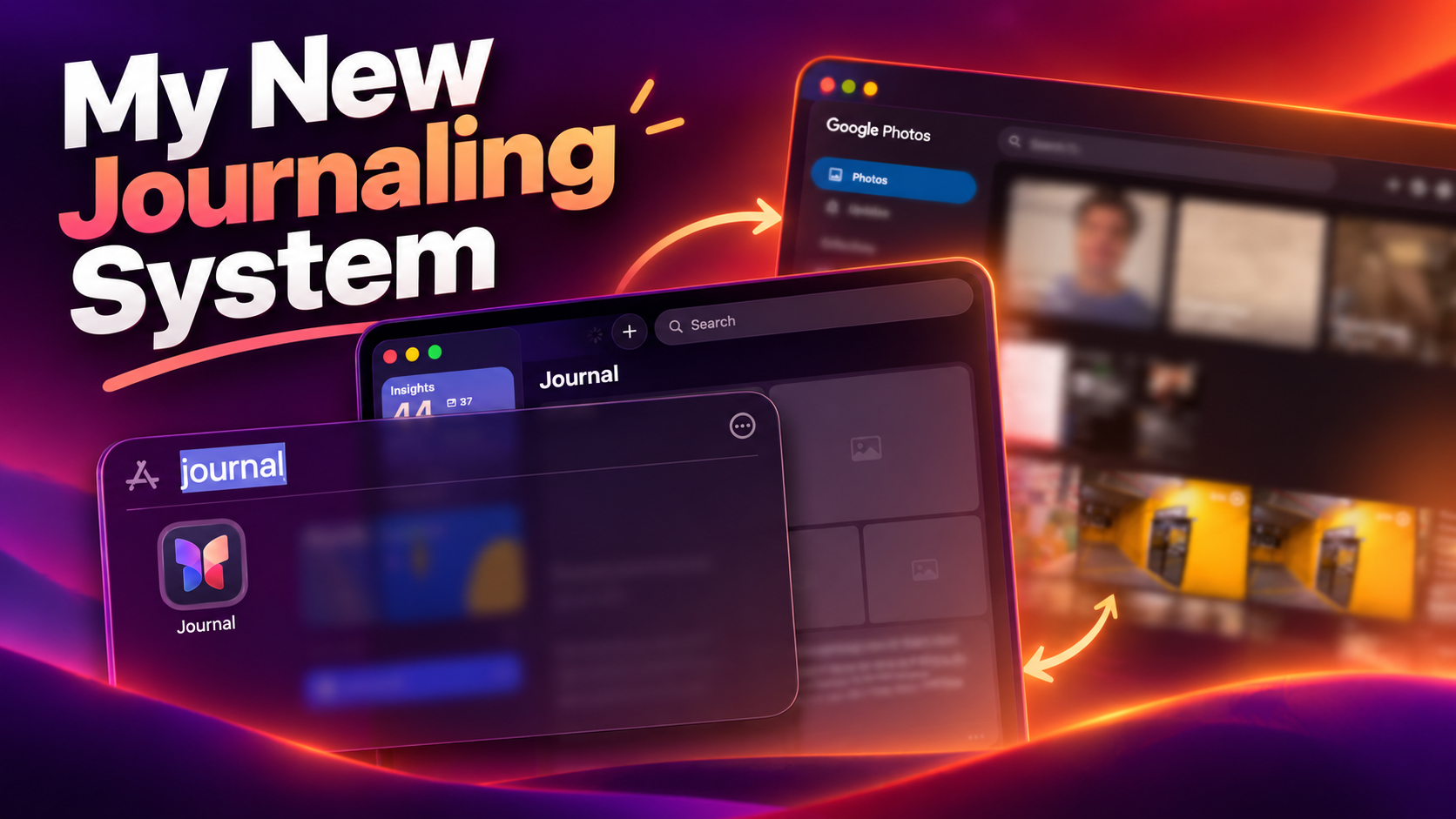
My Solution: Apple Journal + Google Photos
So, here’s my new journaling system.
I’ve decided to combine Apple Journal with Google Photos, using each app for what it does best.
I really like Apple’s Journal app. It’s minimalistic, fast, and visually pleasing. Everything feels clean and focused, with the important information right where it should be.
It’s a refreshing change from Day One’s increasingly cluttered interface.
But I still want to include photos and videos in my journal without ending up with another massive library.
That’s where Google Photos comes in.
My approach is pretty simple:
- Apple Journal: I’ll use it for my daily entries, thoughts, memories, and smaller, compressed versions of photos and videos.
- Google Photos: This will be my main media library, where I keep the original, full-resolution photos and videos.
For example, if I write a journal entry about a particular day, I’ll attach compressed photos or reduced-size videos as previews. Whenever I want to revisit the original media, I can simply open Google Photos and find everything under that same date.
This way, I still get a visually rich journal without filling it with gigabytes of full-resolution media.
Finding the Middle Ground
I think this setup offers a nice balance between functionality, simplicity, and aesthetics.
Day One is undoubtedly more powerful in terms of features, but I’ve reached a point where I value speed, simplicity, and a clean interface more than having every possible feature.
Of course, this new system isn’t perfect.
I’m currently experiencing some issues with media syncing between my iPhone and MacBook, which is a little frustrating. Hopefully, Apple will improve this in future updates.
For now, though, I’m enjoying the experience.
It’s simple, looks great, and allows me to keep my memories organized without worrying too much about storage space.
Will this finally replace my decade-long relationship with Day One?
We’ll see how it goes. I’ll probably share an update once I’ve spent more time with this setup.
